
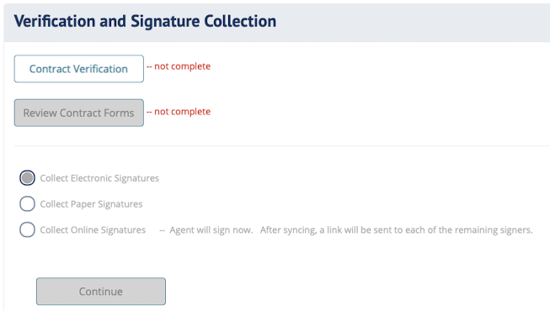
Contract Verification
Tap/click the Contract Verification button to have DIGicon scrub the entire contract for errors, missing information, and state-specific compliance requirements.
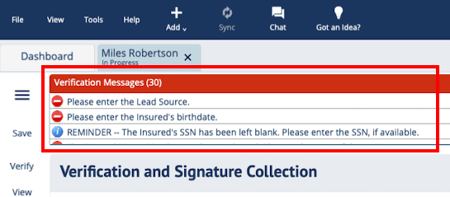
Review the verification messages that appear at the top of the screen. You can see three different types of messages:
-
✅ Green checkmark — This section is compliant and good to go. No action needed.
-
ℹ️ Blue "i" icon — A reminder or tip (e.g., "The Insured's SSN has been left blank"). This is not required to proceed.
-
⛔ Red minus icon — An error that must be resolved before you can finalize (e.g., "The description for 'Other Merchandise' cannot be blank"). Tap/click the error message to jump directly to the discrepancy.
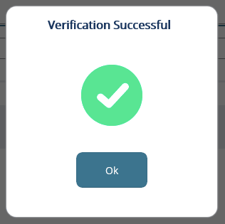
Once verification passes with no errors, a Verification Successful popup will appear.
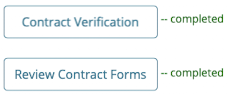
DIGicon requires verification each time you make changes to the contract. The status will show "-- not complete" until verification passes, then update to "-- completed."
Review Contract Forms
Tap/click the Review Contract Forms button to review a PDF draft of the contract.
Carefully review all spelling, items, and details for accuracy.
✋ TAKE YOUR TIME — If you find a mistake after signatures are collected, the contract will need to be sent back and signatures will have to be obtained again.
Be sure to close the draft PDF and make sure both the Contract Verifcation and Review Contract Forms buttons have "-- completed" next to them.
Collect Signatures
Next, choose how you'd like to collect signatures: Electronic, Online, or Paper
If you selected Bank draft later or Credit Card later, the Account/Card-holder must enter the payment information before they sign.
-
Electronic signatures — Collect signatures in-person using a touch screen, signature pad, mouse, or use your phone with FDL Mobile.
- A signature screen will open with a list of tabs on the left.
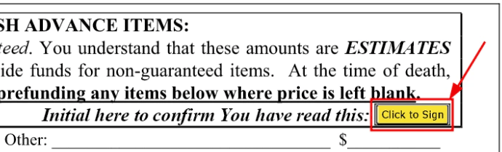
- Click/tap each tab to open the signature field, then have the signer apply their signature in the window that appears using the Click to Sign box.
After the customer creates the first signature and initials, it can be applied to the remaining boxes. No need to create/draw it each time!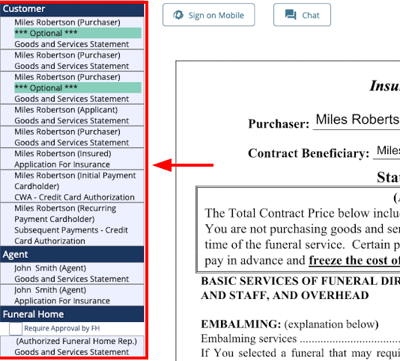
- Learn more about the Sign on Mobile button → Signatures with FDL Mobile
- To cancel, click/tap Stop Collecting Signatures. This clears all signatures and will force you to re-collect all signatures.
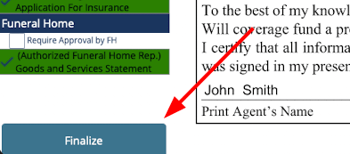
- After all signatures are captured, click/tap the Finalize button in the bottom left corner. Button is disabled until all signatures are captured.
-
Online signatures — Collect signatures remotely via email.
- Verify or enter the email address (and optionally a phone number for text notification) for each signer.
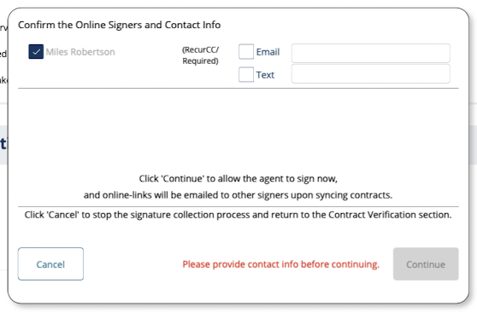
- Click/tap Continue and complete the Agent signatures.
- After the agent signs and the contract Syncs, an email with a signing link will be sent to the remaining signers. Link expires after 7 days.
- See how families complete Online Signatures
- After agent signatures are captured, click/tap the Finalize button in the bottom left corner. Button is disabled until all signatures are captured.
- Verify or enter the email address (and optionally a phone number for text notification) for each signer.
-
Paper signatures — Collect wet (ink) signatures on printed paper.
- DIGicon generates the contract forms for printing.
- Print the forms, collect physical signatures, and submit:
- Email — Send scanned copies to incoming.newbusiness@funeraldirectorslife.com.
- Mail — If mailing, make sure you answered "Yes" to "Will there be items mailed separately?" in the Policy Details section so the Mail Transmittal form is generated.
After Finalizing
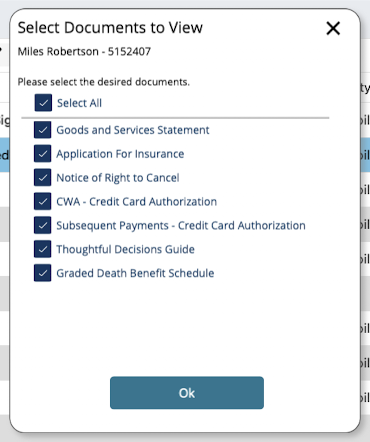
Once the contract is finalized, a popup will appear allowing you to print or email the completed, signed contract documents.
Save a copy to your computer and provide a copy to the customer.
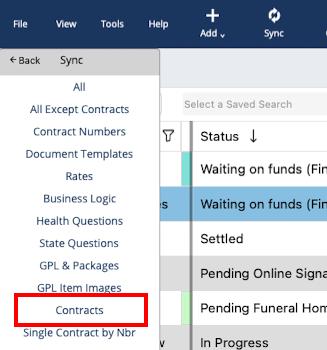
Finally, close the contract and Sync contracts (File > Sync > Contracts).
If Sync is grayed out, make sure all contracts are closed and that you have an active internet connection.
You cannot sync in Practice Mode.
Explore other DIGicon sections:
- Contract Setup
- Lead Details
- Insured Information
- Address & Contact
- Health Information
- Goods & Services
- Payment Options
- Family & Friends
- Veteran Information
- Policy Details
- Legal Parties
- Personal History
- Funeral Options
If you have any questions or concerns, please contact the Help Center at (800) 692-5125 or email help@funeraldirectorslife.com.