
If you've already set up NinjaOne but need help requesting remote support, check out this article instead.
Before you begin
- Use the computer that needs assistance.
- Save your work and close private documents, messages, and other information you do not want visible.
- Keep your technician available by phone or chat.
- Never share your password or verification code.
- Only continue if you requested support using a known contact method. An email displaying the NinjaOne name is not proof that it is legitimate.
If at any point the page does not match what your technician described, stop and ask for help.
Set up NinjaOne
On the computer that needs help, open the remote assistance email from your technician.

Click Accept Invitation.
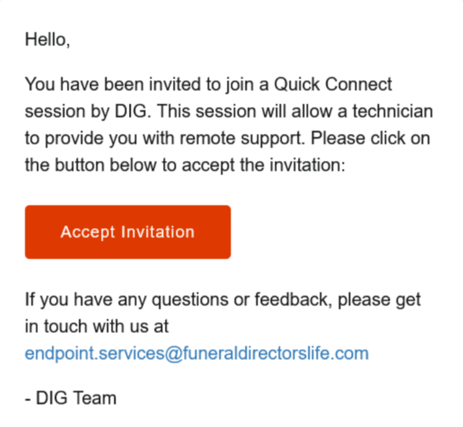
A support page should open in your web browser. Click Connect.
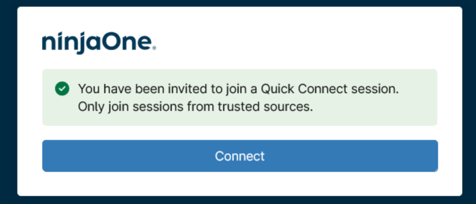
If your company already has NinjaOne installed, you may be prompted to connect using a provided connection code.
Next, download NinjaOne Quick Connect.
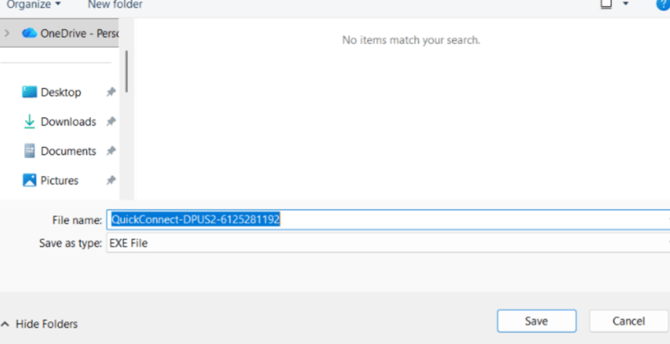
Find the file in your computer's downloads and open it.
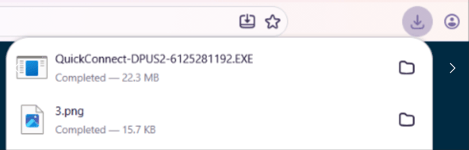
- If your computer blocks it, do not bypass the warning. Let your technician know.
- If your computer asks to allow the application to run or make changes, click Yes.
-
If a screen-sharing request appears, confirm it's your session and Allow connection.
You're connected! Your technician can now view your screen and begin troubleshooting.
If you have any questions or concerns, please contact the Help Center at (800) 692-5125 or email help@funeraldirectorslife.com.