Watch this video or keep reading below to learn how families use Online Signatures.
How does it work?
First, the family clicks the link in their email.
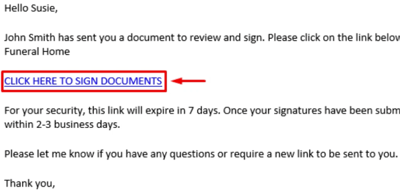
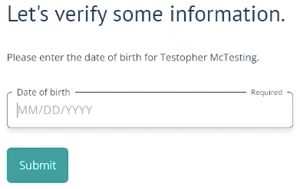
Then, they enter the insured's date of birth for verification.
Payment
If payment is required, they'll click the Edit button. If not, skip to signatures below.
Payment info may be required for the Down payment AND the Premium.
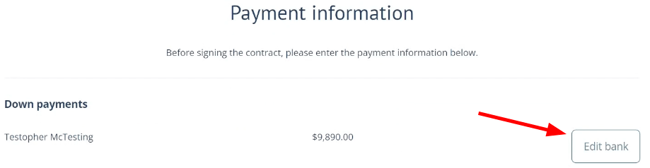
They'll be asked provide either Bank draft or Credit card information.
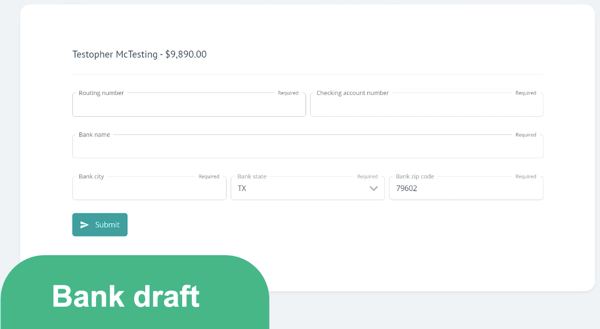
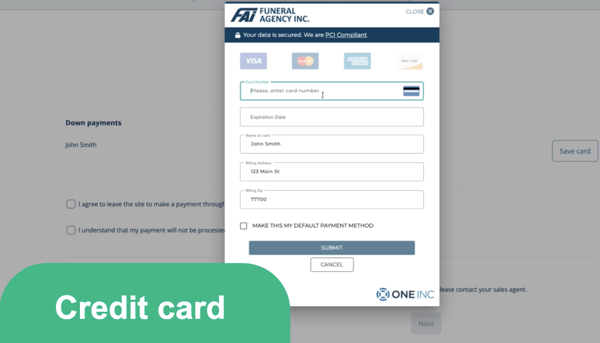
Then, they can click Submit to confirm and enter payment information.
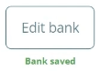
Payment info is saved when the green text shows: "Bank saved" or "Card saved"
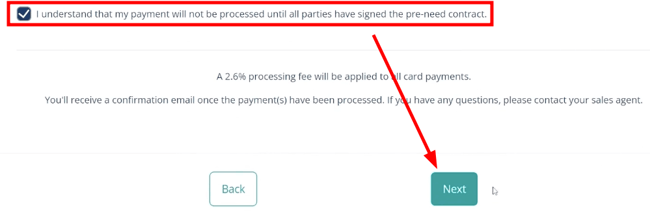
Click the checkbox, then click Next.
Signatures
To view the full contract, the family can click the View contract button.
After clicking View contract, they'll be taken to a new tab to review the document. They must return to the previous tab to continue signing.
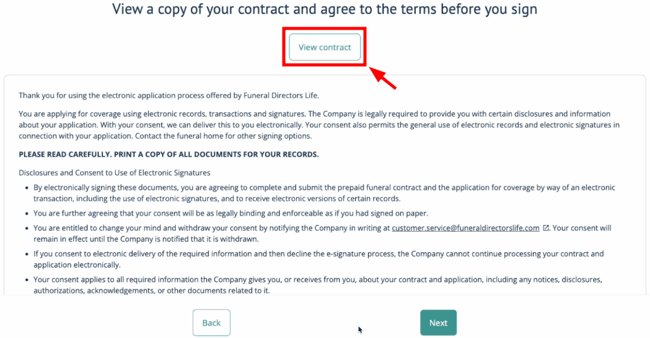
Then, the family will scroll all the way down, click the checkbox, then click Next.
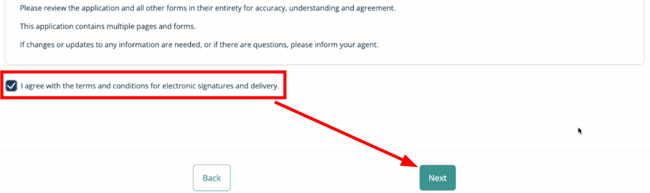
Families will continue scrolling through each document and clicking each checkbox to sign.
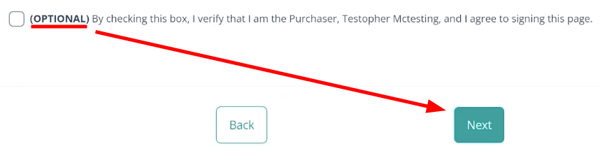
Some checkboxes are OPTIONAL. You can skip them by simply clicking Next.
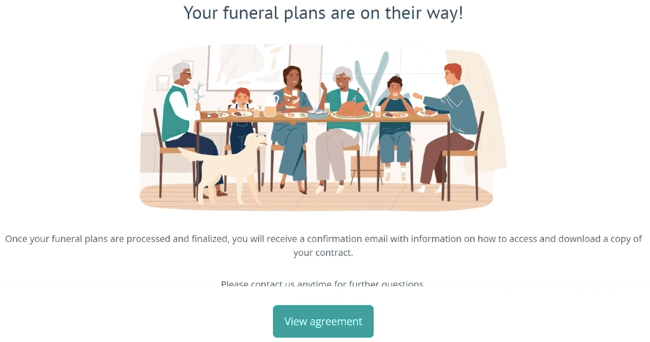
All done! The family will receive a confirmation email with instructions on how to access and download a copy of the contract.