
⬇️ Click to download DIGicon from the Microsoft Store
You can also find this link in Online Access. See instructions below.
💡 Moving from the old DIGicon? Here's what you need to know:
- How do I make sure I don’t lose any data? Just Sync in the old DIGicon, then Sync again in the new one. All your data (including in-progress contracts) will be ready to pick up where you left off.
- Does this uninstall my current Digicon? No. For now, you can use and switch between the two version (old and new) as needed. Old DIGicon will be officially phased out in 2027.
Need help migrating to new DIGicon? Contact the Help Center at (800) 692-5125 or email help@funeraldirectorslife.com.
Download & install DIGicon
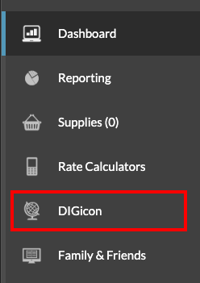
Log in to Online Access and select DIGicon from the left side menu.
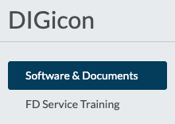
Click Software & Documents.
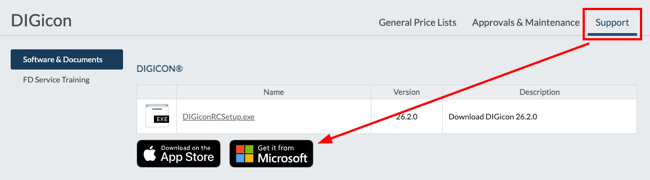
From the the Support tab, click the Get it from Microsoft button.
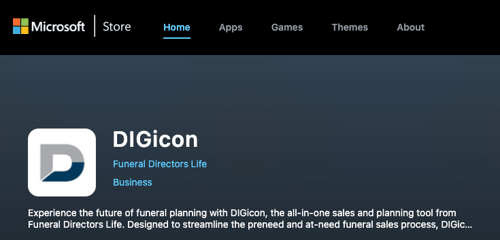
You will be directed to the Microsoft Store to download DIGicon.
Looking for the old DIGicon? We are ending support for the old version soon. Until then, you can still download it from Online Access (instructions below).
(Retiring soon) Download old DIGicon
Click the link that says DIGIcon Setup.exe
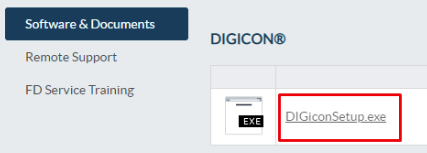
- If you have an option to click Run or Save, click Run, and the installer should start automatically.
- If you only have an option to Save, find and open the installer file to proceed.

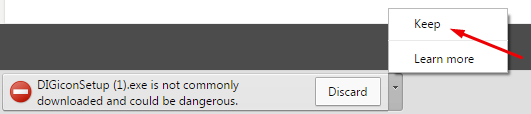
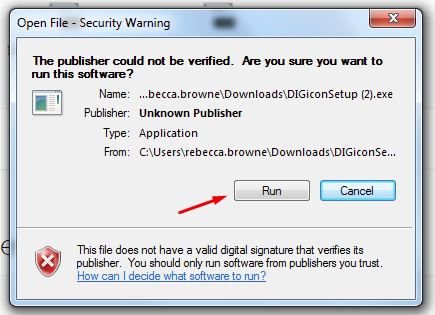
Open your recent downloads, then click DIGiconSetup.exe
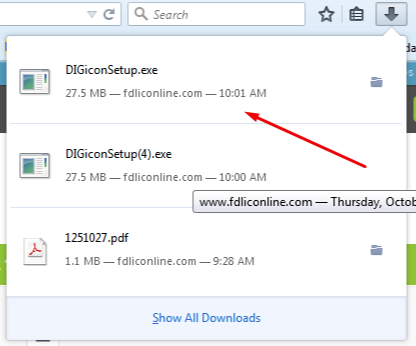
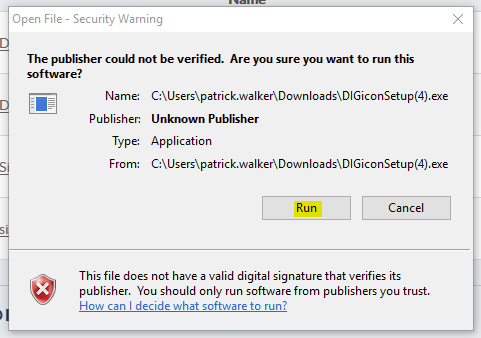
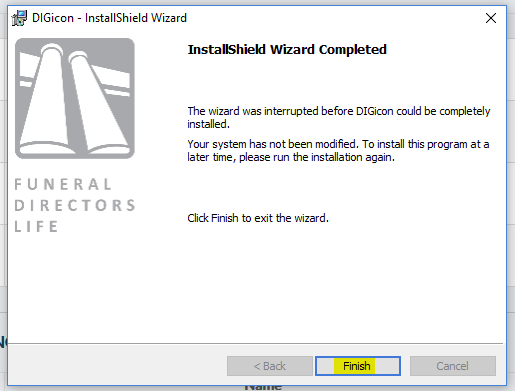
Once the installer is open, follow the prompts and click Finish to complete the setup.
Related articles
If you have any questions or concerns, please contact the Help Center at (800) 692-5125 or email help@funeraldirectorslife.com.