
Skip to:
Connect to DIGisign
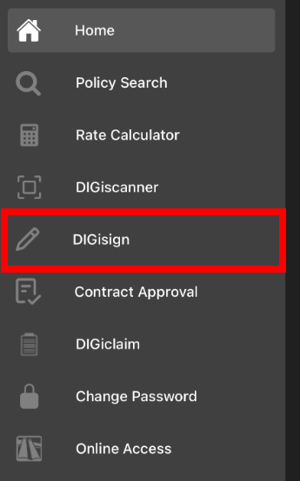
First, open FDL Mobile and tap the hamburger menu [☰] in the top left.
Tap DIGisign.
Tap the Scan QR Code button.
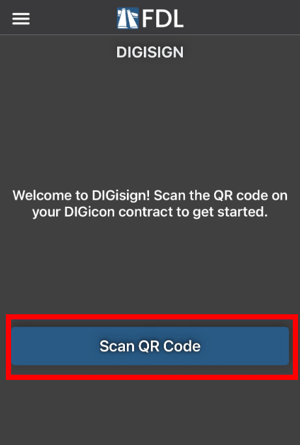
A camera viewfinder will open for you to start scanning .
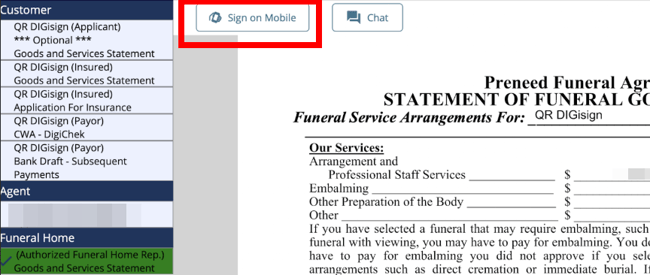
Next, in DIGicon, make sure you are on the signature collections screen.
Click Sign on Mobile in the top left corner.
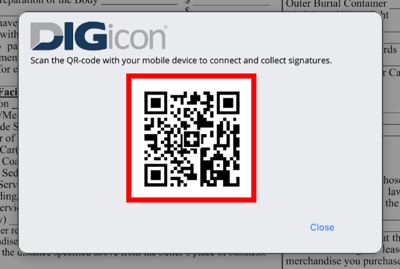
Scan the QR code with your mobile device.
In DIGicon, the Sign on Mobile button will turn green to show you are connected to FDL Mobile. In FDL Mobile, a green status bubble will appear to show you are connected to DIGicon.
Capture signatures
Once you connect to DIGisign (above), you should see a message on your phone: "Waiting for signature field selection. Please select the field you wish to sign in DIGicon."
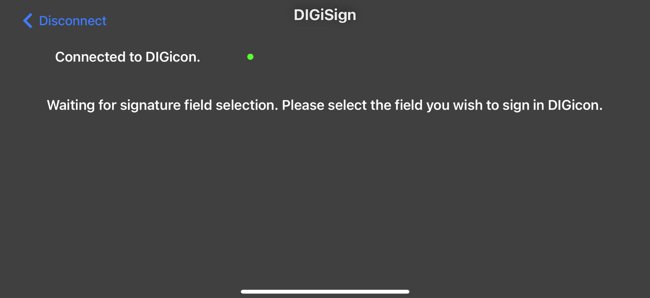
In DIGicon, click on a signature field (e.g., Applicant, Owner, Funeral Home Representative).
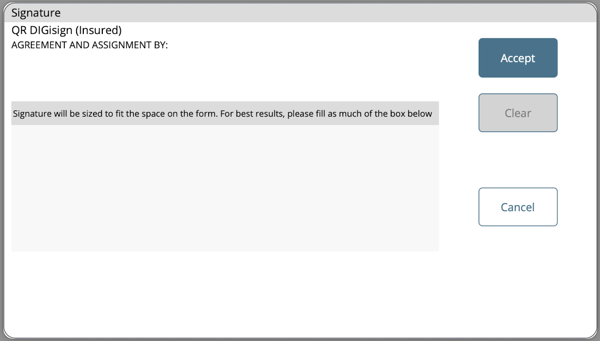
A pop-up will appear in DIGicon, ready to receive the signature from DIGisign.
On your phone, a signature field will appear.
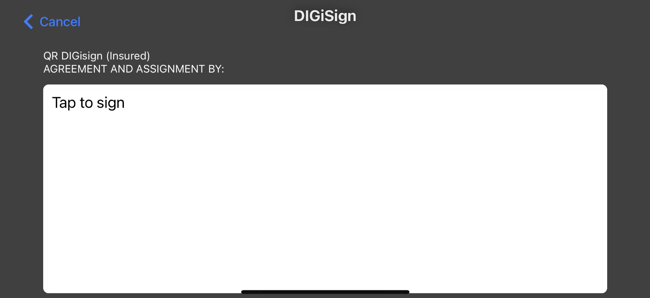
Hand your phone to the signer and have them sign in the signature box.
Tap Submit.
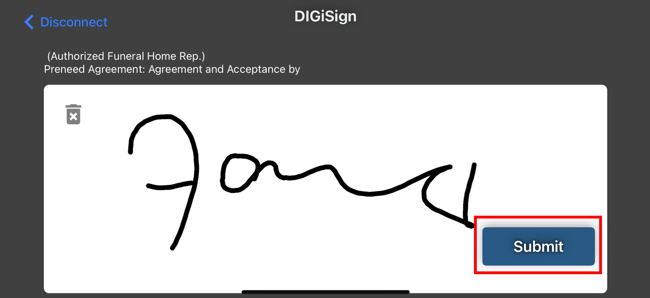
Repeat these steps for each signature field in DIGicon.
Finish in DIGicon
Return to DIGicon to finish up signatures and finalize.
Learn more here! → Verification and Signature Collection in DIGicon
If you have any questions or concerns, please contact the Help Center at (800) 692-5125 or email help@funeraldirectorslife.com.